About the activities

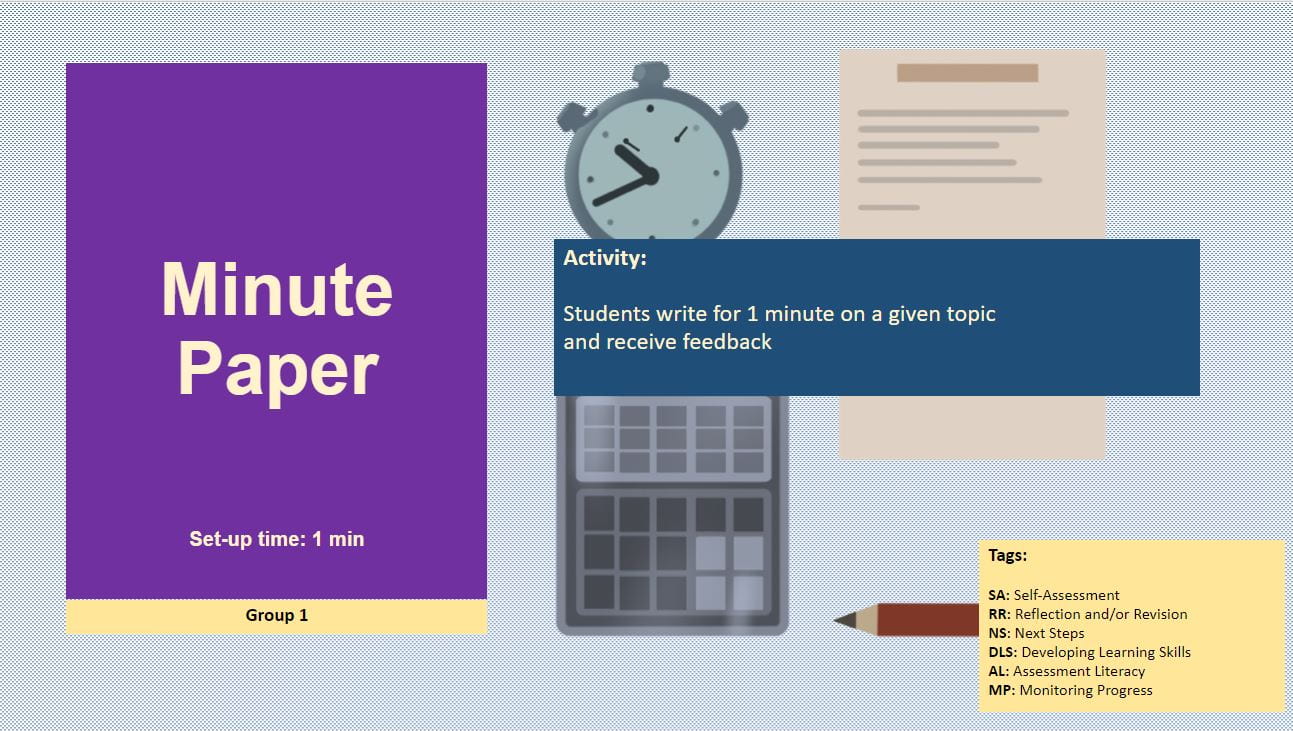
Example IDEAs card: Minute PaperIDEA-Cards-UCL-09-06-21-CC-BY-SA

These IDEAs have been developed to help staff with designing digital assessment and feedbackThe activities are categorised into two overarching groups focused on their short or longer term nature:   

    • Quick ideasquick on the fly activities to check understanding and foster engagement;  
    • Extended ideasactivities that can be embedded and developed throughout a module. 

To facilitate consultation, the activities are also categorised (tagged) based on their pedagogical aims. These tags run across the 2 groups and are listed in the Categories box found throughout the site – click on a category to see all the relevant resources.

The IDEAs

Each IDEA has been presented as a blog post on the following page and take the following structure:

  • Why use it (students and staff)
  • When to use it
  • Digital tools that might be used
  • Speed of set-up time
  • Workload
  • Other resources
  • Exaples of staff use

Each IDEA is labelled with both the Group and the pedagogical aim tag(s) making them searchable.

Tags

  • Assessment Literacy 
  • Peer Feedback / Learn how to give and receive feedback  
  • Collaboration/Collaborative Learning 
  • Self-assessment 
  • Reflection and/or Revision 
  • Monitoring Progress/Check Understanding 
  • Engagement 
  • Developing confidence 
  • Developing Learning Skills 
  • Next Steps 

Self-evaluation

Self-evaluation involves learning how we learn, whereas self-assessment is what we learn.

To train students in self-evaluation, use questions such as:

  • Think about what has happened when the learning has taken place
  • What really made you think? What did you find difficult?
  • What do you need more help with?
  • What are you pleased about?
  • What have you learnt new about x?
  • How would change the learning activity to suit another class?

Example instructions to students:

Use the question prompts to help you learn how you learn. Think about what has happened when the learning has taken place 

Why use it (students and staff)

  • To enhance students’ reflection/awareness on their progress 
  • It provides an opportunity to generate feedback  
  • It fosters assessment literacy 
  • It allows students to monitor and validate their own progress 
  • Good preparation for professional reflective portfolios 

When to use it

  • Ideally ongoing (embedded throughout a programme or module)
  • Half-way through the term
  • After introducing challenging concepts;
  • Contributing to a capstone project 
  • As part of group work
  • As a revision tool in preparation for summative assessment 

Digital tools that might be used

  • My portfolio 
  • Reflect 
  • Moodle quiz 
  • Moodle Forums 
  • OneNote 
  • Uploads on Moodle 

Speed of set up time 

  • Proportional to the scale of evaluation (1 min to 1 hour) 
  • Ongoing practice 

Workload

  • Outline the requirements;
  • Prepare rubrics/criteria;
  • Prepare or keep exemplars 
  • Familiarise and preparing students with the concepts and benefits ; 
  • Oversight of the output;
  • Design the instrument/tool ;
  • Maintenance and alignment  

Other resources

  • Exemplars (access to previous feedback)
  • Non-written evaluation opportunities (video / audio)
  • External support and resources (vocational);  
  • Opportunity for peer-discussion 

Examples of staff use

Learning Journal

Create a learning journal in which students can reflect in and review their learning.

It could include tutorial actctivites, target setting, aims and goals etc.

Why use it (students and staff)

  • To monitor learning  
  • To promote and enhance reflection 
  • To review learning processes and trigger meta-learning processes 
  • To make links between learning experiences 
  • To set goals (short and long term) 

When to use it

Throughout the course, or linked to a specific task or assessment (depending on purpose) 

Digital tools that might be used

  • Reflect blog 
  • OneNote class notebook  
  • MyPortfolio 
  • Moodle Forum 
  • Moodle Wiki
  • Video / audio diary 

Speed of set up time 

Varies, but do build in lead time to liaise with learning technologists 

Workload

Explain the purpose and value of the journal and provide specific (which aspect to focus on) and/or timed (e.g. week 3) reflection prompts 

Other resources

  • Exemplars (multimedia) 

Examples of staff use

Peer Marking

Students mark each others’ wotk according to assessment criteria.

It encourage reflection and thought about the learning as well as allowing students to see model work and rason past misconceptions.

Oppotunities to do this throughout sessions and schemes of work.

Why use it (students and staff)

  • Encourages reflection and thought about the learning as well as allowing students to see model work and reason past misconceptions. 
  • Develop understanding of assessment criteria and feedback literacy 

When to use it

  • Individual sessionsbetween sessions and embedded throughout schemes of work. 

Digital tools that might be used

  • Handwritten paper photographed and uploaded 
  • Shared files 
  • Breakout rooms (Zoom, BB Collaborate, MS Teams)
  • Moodle Discussion forum  
  • Moodle workshop 
  • Moodle Wiki 
  • IPAC via Moodle
  • Peermark (Turnitin) 

Speed of set up time 

Minimum 30 minutes. Varies depending on the tool(s) used.

Workload

  • Create / facilitate pairing or grouping 
  • Developing mark scheme / rubric 
  • Looking over and feeding back 
  • Setting assessment 

Other resources

  • Rubrics  
  • Grouping / matching systems  
  • Exemplars  

Examples of staff use

Group Feedback

Group feedback to a lecturer concerning peer-assessment of work can help make the lecturer aware of learning needs in a manageable way.

If a group feed back on an activity, it generates more attention and presents information that has already been ordered and sorted (meaning less repetition for the lecturer).

Why use it (students and staff)

  • Groups feed back to lecturer based on peer assessment 
  • Develop feedback skills 
  • Reflect on learning during a session 
  • Identify gaps in learning 

When to use it

  • Between sessions 
  • During seminar sessions 

Digital tools that might be used

  • Breakout rooms (Zoom, BB Collaborate, MS Teams)
  • Moodle Discussion forum 
  • Shared documents 

Speed of set up time 

2 to 10 minutes

Workload

  • Preparing a summary of feedback to be shared with groups (modelling practice) 
  • Create / facilitate grouping;  
  • Looking over and feeding back 

Other resources

  • Pre-assign breakouts 
  • Moodle Group choice –  for student group selection 
  • Moodle Hot questions (for students to ask clarification) 
  • Anonymous response system (e.g. Mentimeter) to share comments, ask questions anonymously  

Examples of staff use

Student Marking

By taking part in the process of assessment, students gain a deeper understanding of topics, the process of assessment and what they are doing in their own work.

This helps to make them more aware of ‘what learning is’ and thus see their own learning in this way.

Example instructions to students:

Self-mark or peer-mark your work, working alone or in pairs, using appropriate rubrics and assessment criteria. 

Why use it (students and staff)

  • Develop understanding of assessment criteria and feedback literacy 
  • Enables reflection on their own work 
  • Identifies any misunderstandings in the assessment criteria 

When to use it

  • As part of a gateway assessment
  • When reviewing exemplar materials
  • At the end of a session or between sessions 

Digital tools that might be used

  • Handwritten paper photographed and uploaded – Office Lens 
  • Moodle Discussion forum 
  • Breakout room discussion (Zoom, BB Collaborate, MS Teams)
  • Shared file 
  • Peermark (Turnitin) 

Speed of set up time 

2 to10 minutes, this depends on whether rubrics and exemplars are available

Workload

  • Developing mark scheme / rubric 
  • Looking over and feeding back 
  • Setting assessment 

Other resources

  • Exemplars 
  • Rubrics 

Examples of staff use

Exemplar Work

Students are shown anonymised exemplar of work/ previous assignments to develop an understanding of standards and criteria. 

Students can be asked to mark exemplar work individually or in groups to develop a better understanding of the process of assessment. 

Why use it (students and staff)

  • Develop an awareness of standards
  • Assessment literacy
  • Enhance independence and evaluation skills
  • Manage expectations 

When to use it

Mid-term; In preparation for a piece of assessment 

Digital tools that might be used

  • Moodle workshop tool 
  • Moodle Forums 
  • Annotation software  
  • Turnitin Peer-Review 
  • Shared document 

Speed of set up time 

30 to 90 minutes

Once the activity is set up and can be ‘reused’ then time will be considerably shorter

Workload

Selecting exemplars:

  • writing rubrics and criteria 
  • setting up specific instructions for students 

 Please consider introducing the task during a session and model practice (this could include a video or screencast) 

 Please include a follow-up activity where feedback is provided 

Other resources

Any peer-feedback tool (Moodle workshop; Peer-review on Turnitin; etc.) 

Examples of staff use

Arena toolkit for guided marking

Long and short term

To draw together progression with the big picture students set short- and long-term targets.  

The short term targets could be reviewed weekly or fortnightly and the long term targets at the end of term.

Having a long term target may give more cogency to the students’ and lecturers’ short term targets. It may also allow the student to focus on what really motivates them about a subject.

Why use it (students and staff)

  • Enables students to set and monitor their own progress ; 
  • Helps to keep the big picture in mind;
  • Provides an opportunity to generate feedback
  • Enables constructive peer-feedback and interaction 

When to use it

  • At the start of a module, reviewed regularly;  
  • Could link well to personal tutoring 

Digital tools that might be used

  • Breakout rooms (Zoom, BB Collaborate, MS Teams)
  • Shared documents

Speed of set up time 

1 to15 minutes to set up. Longer if accompanied by a brief and exemplars.

Workload

  • Design the instrument/tool/questions;  
  • Looking over and feeding back 

 Other resources

  • Exemplars
  • Opportunity for peer discussion

Self-assessment targets

Students give themselves targets based on their self-assessment.

These learning goals could be recorded somewhere and revisited (i.e. a learning diary or an e-portfolio).

They could be compared to the lecturer’s targets and the two brought to consensus if different.

Why use it (students and staff)

  • Reflect on learning during a session or over a semester
  • They could be compared to the lecturer’s targets and the two brought to consensus if different
  • Enables staff to review and reflect on students’ perceptions of own development 

When to use it

  • Throughout a course, scaffolded into activities
  • End of a/each session;  
  • Checkpoints 

Digital tools that might be used

  • Reflect 
  • My Portfolio 
  • Moodle Wiki 
  • Moodle Discussion forum 

Speed of set up time 

Varies based on tool used 

Workload

  • Prepare rubrics/criteria 
  • Prepare or keep exemplars 
  • Familiarise and preparing students with the concepts and benefits  
  • Oversight of the output 

Other resources

Any type of shared document.

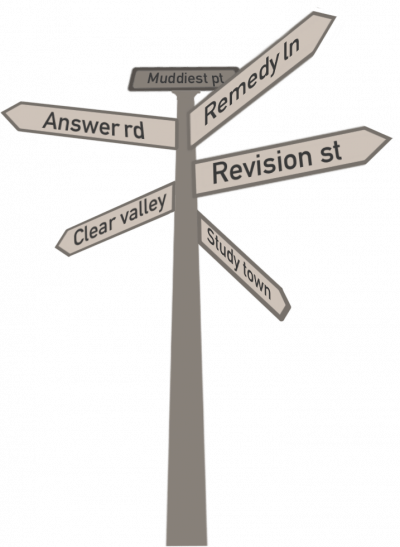
Muddiest Point

Students write down one or two points on which they are least clear.

This could be from the previous session, the rest of the course, the preceeding activity etc.

The lecturer and class can then seek to remedy the muddiness.

Example instructions for students:

Write down one or two points from the previous session that are least clear to you. 

Why use it (students and staff)

  • To monitor progress and build student confidence 
  • To receive feedback on the teaching style 
  • To make sure key points are clear 

When to use it

  • Throughout the module. 
  • Mid or end of sessions 

Digital tools that might be used

  • Moodle Forum;  
  • Moodle Chat;  
  • Echo360 Q&A;
  • Breakout room  (Zoom, BB Collaborate, MS Teams)

Speed of set up time 

5 minutes

Workload

Set-up feedback mechanism.

Other resources

  • Mentimeter 
  • Interactive response system 
  • Shared whiteboards (Zoom , BB Collaborate, MS Teams)
  • Hot questions on Moodle